

WordPress Website Maintenance: What Small Businesses Actually Need
A monthly 15-minute checklist you can run yourself — and the honest line between that work and an engineer's job.

Quick Answer
Essential WordPress maintenance for a small business fits into 15 minutes a month and four core tasks:
- Test the revenue pages. In a private/incognito browser window, complete one real transaction — submit a form, book an appointment, or reach the payment screen — and confirm it actually arrives.
- Verify backups. Confirm automated backups are stored off-site and that a restore is realistically possible; an hour or less is a healthy target to plan around.
- Audit your plugins. Deactivate what you no longer use and flag anything the author hasn’t updated in over 12 months. Every unmaintained plugin is unnecessary attack surface.
- Update selectively. Take a fresh backup first, update one item at a time during off-peak hours, and test before moving on. Never click “Update All” without a way back.
What Three Silent Days of a Broken Form Actually Cost
Marisa runs a 14-person plumbing company outside Tampa. On a Friday afternoon she clicked Update All in her WordPress dashboard, closed the laptop, and started her weekend. The updates installed. Nothing looked wrong.
On Tuesday a customer called to ask why the online booking form wouldn’t accept a ZIP code. He was right. Nobody had noticed for three days. In that window, roughly 40 booking requests hit a form that was quietly failing.
Translate that into money. At an assumed average job value of $300, three days of a broken booking form represents up to $12,000 of expected revenue that never materialized. (That figure is an illustrative estimate — 40 requests × $300 — included to show the scale of the exposure, not a verified case outcome.) Now compare it with the prevention side: managed WordPress care plans covering tested updates, verified backups, and routine form checks typically run $59–$239 per month.
The arithmetic is the entire argument for this article. Missed maintenance rarely stops a site tomorrow. It compounds quietly, and the eventual repair bill — or the revenue that simply never arrived — almost always costs more than the servicing would have.
The Three Ways Small-Business WordPress Sites Actually Fail
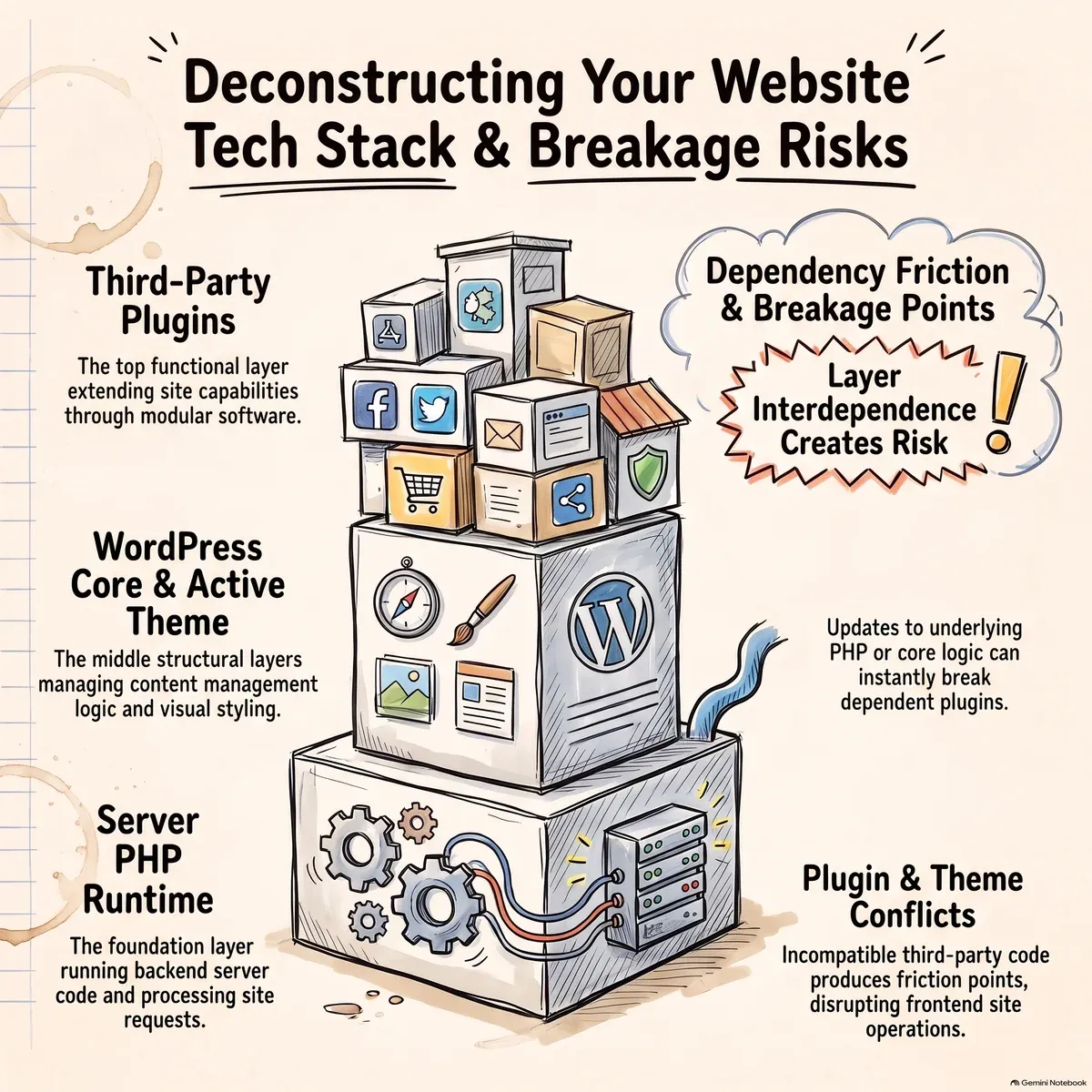
A WordPress site is not a digital poster you publish once. It is software running on other software, extended by add-ons written by hundreds of different teams, and those layers change on schedules that have nothing to do with each other. When one layer moves, the seams between layers are where things crack.
None of these failures come from an owner being careless:
- A feature stops working because something it depended on changed underneath it.
- A feature becomes an entry point because its author stopped maintaining it.
- Something breaks and nobody notices for days, because nobody is looking.
The common thread is not technical skill. It is that nobody owns the site.
The Three Pillars of a Healthy WordPress Site
1. Updates — With an Order, Not Just a Speed
WordPress has four layers that move independently: the core (the base software), the theme (the layer controlling how pages look), plugins (add-ons that provide booking, checkout, forms), and PHP (the server-side language WordPress is written in).
| Layer | What Changes | How Fast It Should Go Out |
|---|---|---|
| Core, security release | Patches for published flaws | Same day to a few days |
| Core, feature release | New dashboard functionality | Deliberately, after a backup |
| Plugins and theme | Features, fixes, occasional rewrites | One at a time, tested between each |
| PHP on the server | The runtime itself | A scheduled project, never a Tuesday afternoon |
The useful habit is a one-page inventory: each plugin’s name, purpose, version, and the date its author last updated it. Two signals matter — nothing updated in 12+ months, or “tested up to” a WordPress version two or more releases behind. Those are replacements, not updates, especially for anything touching logins, payments, or file uploads.
2. Backups — The Difference Between a Backup and a Folder of Files
A backup only counts if it is complete (files and database), stored somewhere other than the same server, recent, and proven restorable. Most small businesses have three of those four.
The test question: could someone produce a working copy of this site on a different address, from this backup, within an hour? If the honest answer is “probably,” you have files, not backups.
- Frequency: daily for anything taking orders, bookings, or payments; weekly for a brochure site with a blog.
- Retention: at least a month of restore points, because breaks often surface a week after they happen — and by then the only surviving backup may already contain the break.
- Access: ask your host whether you can download their backups yourself without opening a support ticket. A backup you can only reach by asking permission is a dependency, not a safety net.
3. Monitoring and Knowing What You Run
Two different jobs get conflated here.
- Uptime monitoring answers “is the site reachable.” It will not tell you the checkout is broken — a failing form still loads and looks fine in a screenshot. If your site transacts, you need either an automated transaction check or a human doing it monthly.
- Vulnerability awareness, for a small business, is not a security team. It is the inventory from pillar one, plus the knowledge that published flaws cluster in plugins handling money, logins, and uploads. When a widely used plugin gets a published flaw, the gap between disclosure and automated exploitation attempts is measured in hours. You cannot react to a flaw in software you didn’t know you were running.
Your 15 Minutes: The Monthly Owner Checklist
Put a recurring 15-minute block on the first Monday of the month. Phone in hand, in this order.
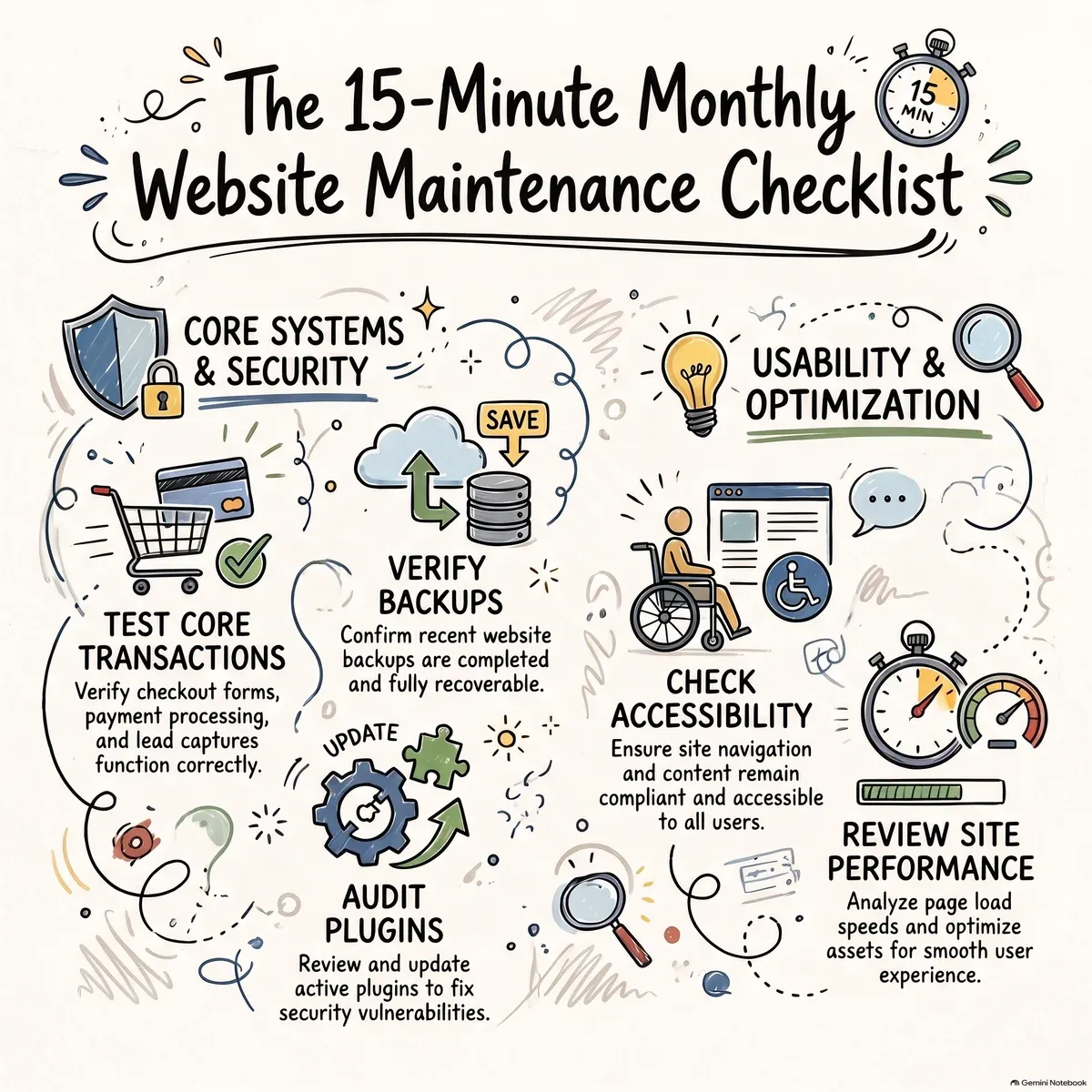
- (2 min) Complete one real transaction. Open the site on your phone in a private window — private, so you see what a new customer sees. Add an item to the cart and reach the payment screen, or submit the contact form and verify it lands in the inbox. Test the page that makes money, not the homepage.
- (2 min) Read the update badge, don’t click it. Note how many updates are pending and whether they’re core or plugins. Clicking comes later, after a backup.
- (3 min) Prove a backup exists. Find it, confirm the date is this week, download one file, and check it isn’t zero bytes. If you can’t locate the download button within a minute, that is the month’s finding — and it outranks every update.
- (2 min) Hunt for plugins you don’t recognize. Anything you can’t explain or haven’t touched in a year: deactivate it, leave it off for a week, and watch for complaints. Removing unused code is the cheapest security improvement you’ll make all year.
- (2 min) Spot-check accessibility after updates. Two fast checks catch what updates most often break:
- Keyboard: Tab through the form, menu, and checkout, and confirm every interactive element receives a visible focus indicator.
- Contrast: Confirm body text and buttons on your top pages stay readable against their backgrounds. Your browser’s developer tools include a contrast checker, or use any free contrast-checker tool.
Be clear about what this is: a smoke test for visible regressions, not an ADA or WCAG compliance determination — a real accessibility assessment is a separate, deeper process. 6. (2 min) Check the boring expirations. Domain renewal date, SSL certificate expiry (click the padlock → Certificate → expiration), and whether the payment gateway account is still active. These fail on calendars, not in code. 7. (1 min) Compare 30 days of traffic to the previous 30. A sudden drop to near zero usually means tracking stopped firing or pages started returning errors — not that demand evaporated overnight. 8. (1 min) Write down one thing that annoyed you. A slow page, an odd mobile layout, an error you saw once. Plain words, with the URL. This is the highest-value item on the list, because it’s the one thing an engineer can’t guess.
If two or more items fail in the same month, don’t fix it yourself at 8:40 a.m. with a customer on hold. Write it up and hand it to someone who does this weekly.
Why “Update All” Can Take the Cart Offline
Core, theme, and plugins are written by different teams against shared functions. A core release can change or remove one of those functions, and a plugin that worked all morning can fail by afternoon. WordPress runs on PHP, where a single fatal error in one plugin stops the whole page rendering — so a small incompatibility doesn’t present as a small problem. It presents as a blank white screen or a dashboard you can’t log into.
Layout breaks work differently. Themes and page builders store layout instructions in the database and generate styling on the fly. An update can change how that styling is generated while your browser, your content delivery network, and your host are still serving the old version — producing a page that looks assembled by someone in a hurry. Fixable, but only if you know which stored copy to clear.
Checkout concentrates all of this. The payment path touches the most moving parts at once: the store plugin, the gateway, theme templates, caching, sometimes a security plugin. It is the least likely place for any change to be harmless, which is why the cart is usually the first casualty and the last thing anyone notices.
The update is not the problem. The update without a way back is the problem. With a current backup, a bad update is a 20-minute afternoon. Without one, it’s a weekend and an invoice.
Where Your 15 Minutes Stop
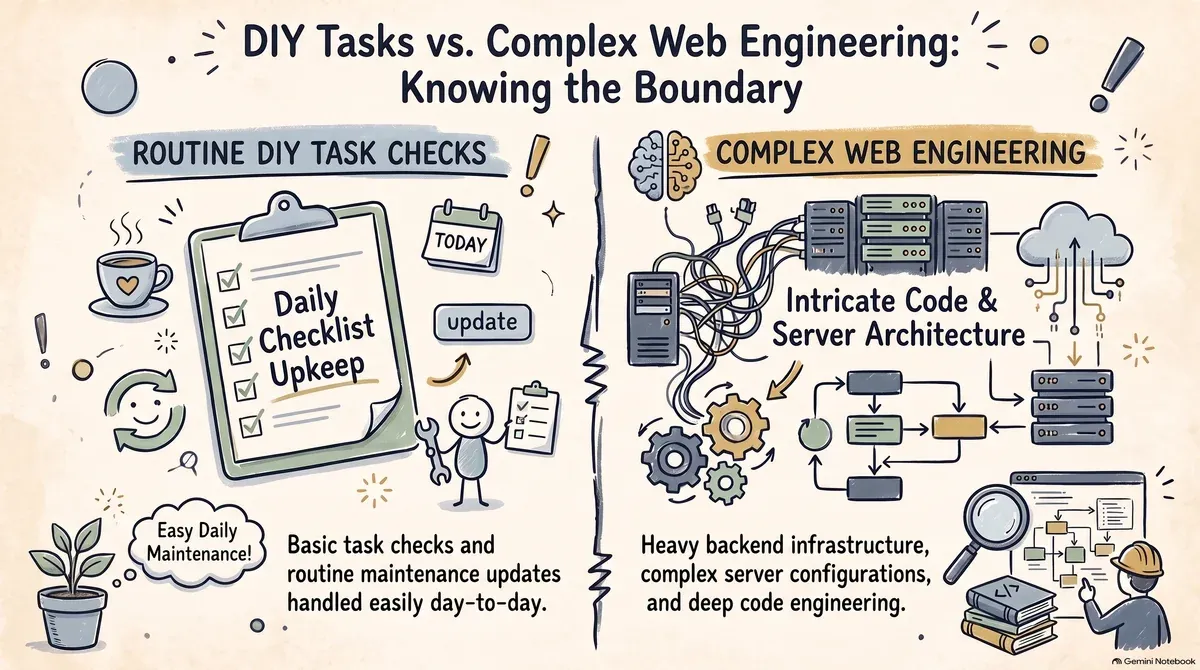
The checklist prevents most of the small stuff. It does not replace the work that stays invisible until the day it matters.
| Yours (15 Minutes a Month) | Needs an Engineer |
|---|---|
| Testing the revenue page in incognito | Site already down, white screen, or locked out of the dashboard |
| Confirming a backup file exists and downloads | Restores, migrations, PHP upgrades, server-level work |
| Deactivating unused plugins | Signs of compromise: redirects, defacement, unfamiliar files — cleanup requires finding the entry point, or they return |
| Noting pending updates | Applying updates when payments, customer data, or logins are in play |
| Keyboard and contrast smoke tests | Full accessibility assessment and code-level remediation |
| Watching traffic trends | Performance work: caching layers, database size, hosting plan |
| Writing down what annoys you | Custom code, or a theme whose original developer is gone |
The pattern: either the action is hard to reverse, or it requires finding the cause rather than applying the fix. Both are the job.
What a Free Audit Actually Gives You
Learning to read your own dashboard well enough to run everything above confidently takes roughly five hours. That’s a fine way to spend an afternoon if you want to own it, and the checklist here is complete enough to keep either way.
If you’d rather not, the faster path is Avesom’s free WordPress audit: a written inventory of what’s installed and how old each piece is, whether your backups actually restore, what’s out of date and what that exposure means in practice, whether the path from “customer clicks buy” to “money moves” is being checked at all, and a prioritized list of what to fix first — in plain English, with no obligation attached.
Your site doesn’t need you to love it. It needs someone to look at it for 15 minutes a month, and someone who knows what to do in the 20 minutes after it breaks.
Sources
- WordPress.org — Managing plugins; plugin metadata including “Last updated” and “Tested up to” fields.
wordpress.org/plugins/(reviewed October 2026). - WordPress.org — “Backing Up Your Database,” official documentation on backup scope and limits.
wordpress.org/documentation/article/backing-up-your-database/(reviewed October 2026). - W3C WAI — WCAG Success Criterion 1.4.3 Contrast (Minimum) and related keyboard/focus guidance.
w3.org/WAI/WCAG21/Understanding/contrast-minimum.html(reviewed October 2026).