

The True Cost of a Hacked WordPress Site — and How to Prevent It
A hacked WordPress site costs more than the cleanup bill. See how automated attacks work, where the real financial damage lands, and four concrete protection steps.

It’s Tuesday morning, and your contact form has been sending the same pharmacy spam to every visitor for eleven hours. You didn’t notice until a customer emailed to ask why your law firm’s homepage was redirecting to a casino site. By the time you log in, Google has already flagged the domain with a red “This site may be hacked” warning in search results.
This is not a targeted attack by a skilled adversary. In most small-business WordPress compromises, an automated script found an outdated plugin, exploited a known vulnerability, and injected malicious code — all before anyone on your team finished their first coffee. The cleanup is unpleasant. The indirect costs — lost leads, search visibility, customer trust — usually hurt longer.
This article walks through what actually happens during a typical automated compromise, where the real financial damage accumulates, and four concrete protection steps you can implement without a dedicated security budget. You’ll also see where DIY checks end and professional remediation begins.
Why Small-Business Sites Get Targeted (It’s Not Personal)
A common assumption: hackers go after banks, hospitals, and large corporations. Why would anyone bother with a 12-page site for a regional HVAC company?
Short answer: Most WordPress attacks are not aimed at a specific business. Automated scanning bots sweep the entire web for any site running a plugin, theme, or core version with a publicly known vulnerability — and small-business sites are hit simply because they appear in that sweep, not because they were chosen.
The answer is that most WordPress compromises aren’t targeted at all. Attackers deploy scanning bots that sweep thousands of sites per hour, looking for any installation running a plugin or theme version with a publicly disclosed vulnerability. The bot doesn’t care whether the site belongs to a Fortune 500 company or a neighborhood bakery. It cares whether wp-content/plugins/example-plugin/readme.txt reports a version with a known exploit.
WordPress powers a large share of the web, which makes it a wide surface for automated scanning. The open-source plugin ecosystem adds thousands of third-party code paths, and not every plugin author patches quickly — or at all. A plugin abandoned two years ago still runs on your server and still answers to the same exploit.
The practical implication: obscurity is not protection. A small site with an outdated plugin is just as discoverable to a scanning script as a high-traffic publication. What changes is the attacker’s goal. Large targets get hit for data theft or ransomware. Small sites more often get repurposed: spam injection, SEO link farms, crypto-mining scripts, or redirect chains. The site still “works” from the owner’s casual glance, which is why compromises go unnoticed for days or weeks.
The Real Cost: It’s Not Just the Cleanup Invoice
Think of it like a break-in at a retail shop. The immediate damage is the shattered glass and the stolen register cash. But the shop also closes for two days while police investigate, the security company re-installs cameras, the landlord sends a notice, and three regular customers decide the neighborhood feels unsafe and stop coming back. The cleanup bill is a fraction of the total loss.
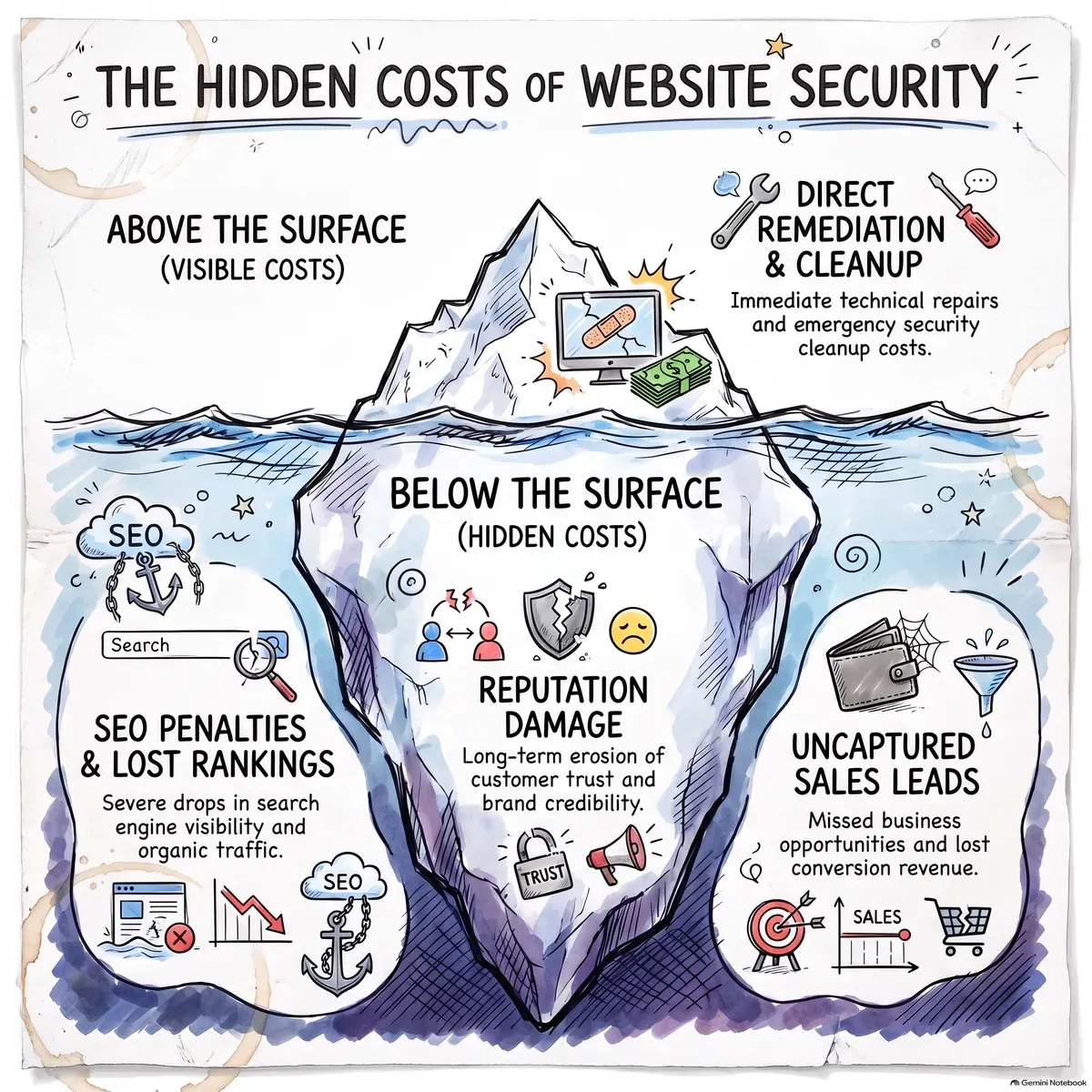
A hacked WordPress site follows the same pattern. Here’s where the costs actually land:
Direct remediation costs
- Emergency cleanup. Removing malicious files, database entries, and backdoors under time pressure costs more than scheduled maintenance. If your developer’s normal rate applies, a rushed Saturday engagement carries a premium. If you hire a specialized incident-response firm, the engagement is scoped by severity, not by the hour.
- Rebuild or restore. If backups are missing, stale, or themselves compromised, you may rebuild sections of the site from scratch. Content, form configurations, and integrations need re-verification.
- Hosting or CDN intervention. Some hosts quarantine a compromised account. Getting reinstated may require proof of cleanup, and downtime accumulates while you coordinate.
Revenue and lead loss during downtime
Every hour the site is offline or flagged, inbound leads go elsewhere. For a service business that relies on organic search and contact forms, a three-to-seven-day outage means missed estimates, missed bookings, and calls that go to a competitor’s listing. The loss is invisible on an invoice because it’s revenue that never arrived.
Google Safe Browsing and search impact
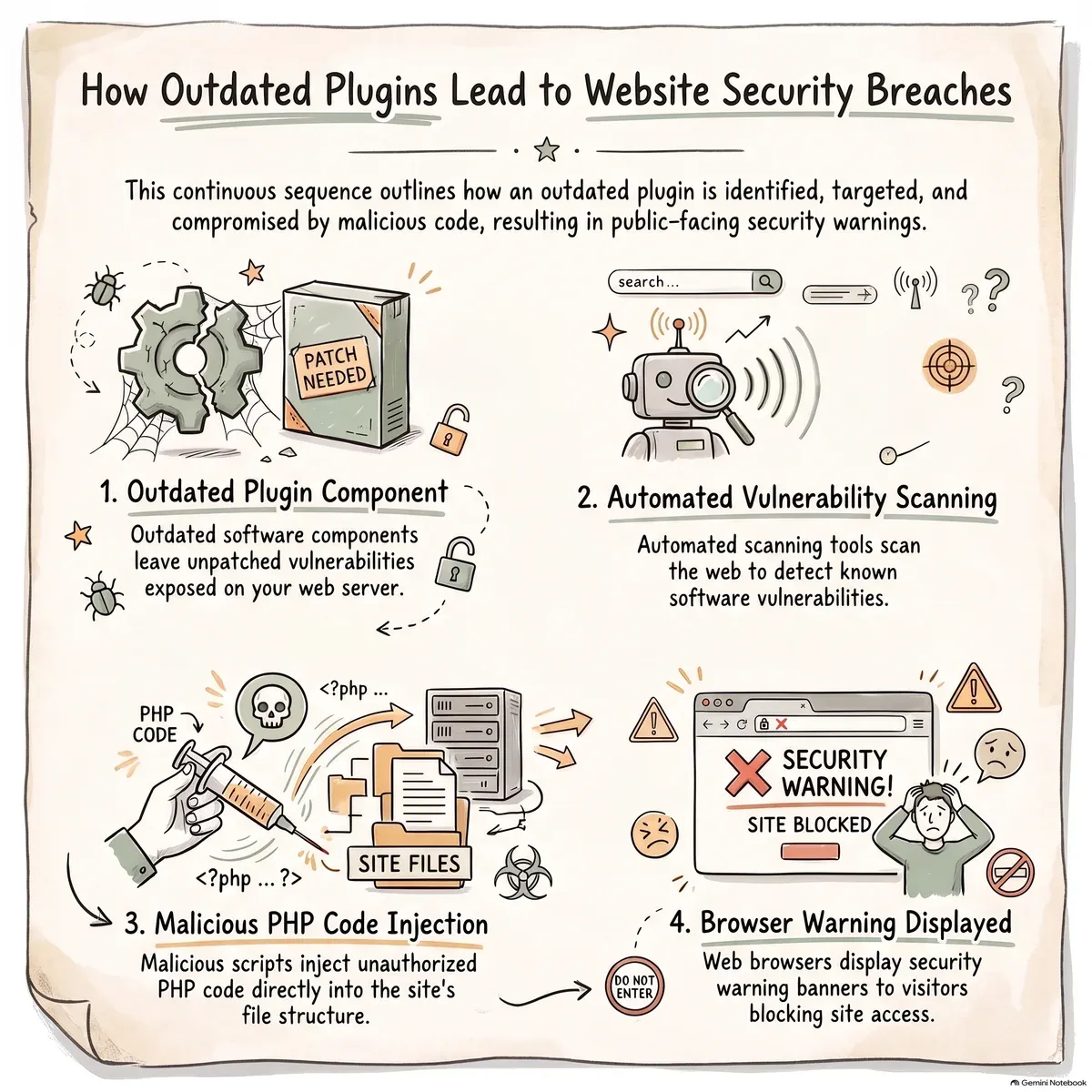
When Google’s automated systems detect malware or phishing patterns on a URL, they can display a full-page interstitial warning: “This site may harm your computer” or “This site may be hacked.” This happens in search results and in Chrome before the page loads. Consequences:
- Organic click-through drops sharply because users won’t proceed past the warning.
- Even after cleanup, you must submit a review request through Google Search Console. Re-review is not instantaneous; it can take days.
- During the flagged period, the site’s rankings can degrade. Recovery of prior positions is not automatic and depends on how quickly the issue is resolved and re-verified.
Reputation and customer trust
A customer who lands on a spam-injected page or gets redirected to a malicious destination associates that experience with your brand. For local businesses with a small client base, one visible compromise can circulate through community groups and review platforms. Rebuilding trust takes longer than rebuilding a database.
Ongoing risk if the entry point isn’t closed
Cleaning visible malware without fixing the vulnerability that allowed entry is a temporary patch. The same bot, or the next one, can re-infect the site within hours. Repeated compromises multiply every cost above and erode confidence that the site is stable enough to invest in.
Anatomy of a Typical Automated Attack
Understanding the sequence helps you see which steps are within your control. Most small-business WordPress compromises follow a recognizable chain:
-
A vulnerable component exists. A plugin, theme, or WordPress core version has a publicly disclosed security flaw. The vulnerability is listed in databases like the WPScan Vulnerability Database or the plugin’s changelog. The site owner hasn’t updated yet, or the plugin is abandoned and no patch exists.
-
An automated scanner finds it. Bots crawl the web looking for specific file paths, version strings, or response signatures that match known exploits. This is not a human browsing your site; it’s a script hitting thousands of URLs per minute. The moment your plugin’s version string matches a known-vulnerable entry, you’re on a list.
-
Malicious code is injected. The exploit uploads a PHP shell, modifies database rows, inserts hidden iframes, or adds spam-posting scripts. The payload depends on the attacker’s goal: SEO spam links, credit-card skimming on checkout pages, cryptominers, or redirect loops. Often the injected code is obfuscated and hidden inside legitimate-looking files.
-
The damage becomes visible (or stays hidden). Some compromises are obvious: defaced pages, unexpected redirects, spam emails sent from your server. Others are silent for weeks: hidden links boost someone else’s SEO, a skimmer captures card data during checkout, or your site participates in a botnet without noticeable performance change.
There is a less obvious side effect worth flagging. Injected scripts, replaced theme files, or hastily patched templates can alter the page layout: skip-nav links disappear, colour contrast drops, focus order breaks, form labels detach from their inputs. The site still loads, so nobody notices — but the accessibility properties that met WCAG 2.1 AA the week before are quietly violated. In the US, that exposes the business to the same ADA-based demand letters that target any non-compliant site, regardless of whether the breakage was intentional. If a compromise is confirmed, include a quick accessibility pass (keyboard navigation, screen-reader spot-check, contrast scan) alongside the malware cleanup.
The critical insight: steps 1 and 2 are entirely outside the attacker’s discretion about you. The bot doesn’t choose your business. But step 1 — whether a vulnerable component exists on your site — is within your operational control. That’s where prevention starts.
Four Protection Steps That Don’t Require a Security Team
These are baseline measures. They won’t make a site invulnerable — no software can make that claim honestly — but they eliminate the most common automated-attack entry points and reduce the blast radius if something does get through.
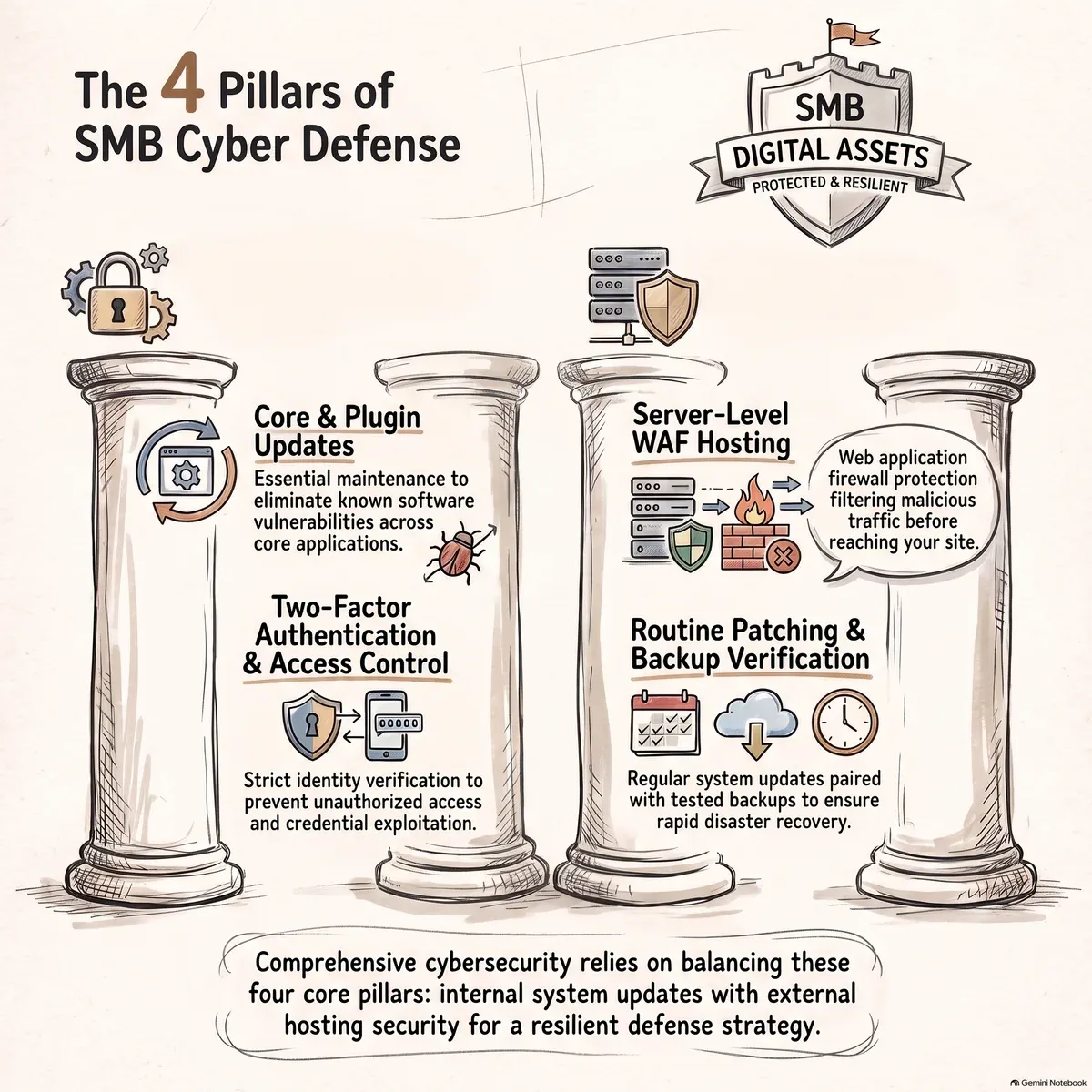
1. Keep WordPress core, plugins, and themes updated
This is the single highest-impact step. Most exploited vulnerabilities have a patch available within days or weeks of disclosure. The gap between “patch released” and “patch applied on your site” is the window the bots exploit.
What to do:
- Enable automatic minor-version updates for WordPress core (these are backward-compatible security patches).
- Review plugin and theme updates weekly. Before updating on a live site, test on a staging environment if your hosting plan supports one.
- Remove plugins and themes you no longer use. An inactive plugin can still contain exploitable code if its files are present in the
wp-content/plugins/directory. - Check whether each active plugin is still maintained. If the “Last updated” date on WordPress.org is more than a year old and the plugin has open security reports, plan a replacement.
2. Strengthen access controls (2FA and least privilege)
Compromised admin credentials are a common secondary vector, especially if the same password is reused across services.
What to do:
- Enable two-factor authentication (2FA) for every WordPress user account with edit or admin access. Plugins like Two Factor (from the WordPress security team) add TOTP or email-based second steps.
- Assign each person the minimum role they need. A content editor doesn’t need Administrator access. A contractor who updates one page doesn’t need the same credentials as your lead developer.
- Change the default
/wp-login.phpexposure by limiting login attempts or restricting wp-admin access by IP if your team works from known locations. This won’t stop a determined attacker, but it cuts down automated credential-stuffing noise. - Remove or rename the default “admin” username if it still exists.
3. Choose hosting that includes server-level security basics
Not all WordPress hosting is equal. A shared plan with no server-side firewall, no malware scanning, and no automatic PHP updates leaves more of the security burden on you.
What to look for:
- A web application firewall (WAF) at the server or CDN level. This filters known exploit patterns before they reach WordPress.
- Automatic PHP version updates with advance notice. Running an end-of-life PHP version removes security patches at the language level.
- Regular server-level backups with off-site storage. Confirm the backup frequency and retention before you need them, not after.
- Isolation between sites on shared hosting. If a neighboring account is compromised, file-system isolation reduces cross-contamination risk.
If you’re unsure what your current host provides, check their documentation for “managed WordPress security” features, or ask their support team directly what patching and scanning they handle versus what falls on you.
4. Schedule regular patching and verification (not just backups)
Backups are necessary but insufficient. A backup from three weeks ago restores your site to a state that may already contain the vulnerability. And a backup you’ve never tested restoring is an assumption, not a safety net.
What to build into a routine:
- Monthly (or more frequent) update cycles for all plugins, themes, and core.
- A quarterly backup-restoration test: pull a backup, restore it to a staging or local environment, and confirm the site loads, forms work, and the database is intact.
- A periodic review of installed plugins and user accounts. Remove what’s unused; deactivate accounts for contractors whose engagement has ended.
- File-integrity monitoring if your host or a plugin supports it. This alerts you when core WordPress files change unexpectedly, which is a common sign of injection.
What You Can’t Conclude from a Single Scan
Security scanners — whether free online tools, hosting-level scanners, or WordPress security plugins — are useful signals. They are not a verdict. Keep these limitations in mind:
- A clean scan doesn’t mean zero risk. Scanners check for known signatures and patterns. A novel exploit, a logic-level vulnerability in a custom plugin, or a compromise that mimics legitimate code can evade signature-based detection.
- A flagged result doesn’t always mean active compromise. Some scanners flag outdated software as “vulnerable” even if the specific exploit isn’t viable in your configuration. Context matters.
- One scan is a snapshot. A site that passes a scan on Monday can be compromised by Wednesday if a new vulnerability is disclosed and an update hasn’t been applied. Security is a maintenance cadence, not a one-time certification.
- Automated scanning doesn’t cover custom code. If your site includes a bespoke plugin, a modified theme, or third-party integrations, a generic scanner won’t audit that logic. Those components need developer-level review.
The practical takeaway: treat scan results as one input in a maintenance routine, not as a pass/fail exam. Pair them with update discipline, access hygiene, and periodic manual review.
When to Bring in a Specialist
DIY checks and routine updates handle prevention. Certain situations call for professional intervention:
- Active compromise. If you see injected code, unexpected redirects, or spam being sent from your domain, stop making changes, preserve server logs and file timestamps, and engage someone experienced in WordPress incident response. Well-meaning edits can destroy forensic evidence or spread the infection further.
- Repeated reinfection after cleanup. This signals an unpatched entry point, a backdoor that wasn’t found, or a compromised hosting environment. It needs systematic investigation, not another surface clean.
- Blacklisting by Google or a security vendor. Reinstatement requires verified cleanup plus a structured review request. A specialist can confirm the site is genuinely clean before you submit, reducing the risk of a rejected review and extended downtime.
- No recent tested backup. If the site is compromised and your last backup is weeks old or has never been test-restored, you need someone who can assess whether the backup itself is clean before restoring it.
If none of the above applies and your site is currently running well, the right move is prevention: a consistent update schedule, access review, and periodic checks. You don’t need to treat a healthy site as an emergency.
Your Next Step
If your WordPress site hasn’t had a structured security review in the past six months — or if you’re unsure whether plugins are current, backups are restorable, and access lists are clean — a focused technical audit is a reasonable starting point. It identifies outdated components, common misconfigurations, and backup gaps before they become an incident.
Avesom’s free technical audit covers seven checkpoints, including software versions, access configuration, and backup status, and delivers findings within one business day. It’s a snapshot, not a guarantee of invulnerability, but it gives you a concrete list of what to address first.
Request a Free Security Audit →
If the audit surfaces an active issue or a configuration you’d rather not untangle yourself, you can scope remediation as a one-time engagement or fold ongoing patching and monitoring into a maintenance plan. Either way, the decision is easier when you know what you’re looking at.

Sources and Further Reading
- WordPress.org — Updating WordPress (official documentation on core, plugin, and theme updates).
- WordPress.org — Security FAQ and hardening guide (official security recommendations).
- WPScan Vulnerability Database (searchable database of WordPress plugin, theme, and core vulnerabilities).
- Google Search Central — Security issues and manual actions (how Google flags and reviews compromised sites).
- Google Safe Browsing (the system behind browser-level “deceptive site” warnings).