

WordPress Plugin Updates: What to Do When an Update Breaks Your Website
Plugin update broke your WordPress site? Follow this step-by-step guide to find the culprit plugin, restore from backup, and prevent crashes.
You clicked Update in WordPress, went to check your site, and something is wrong. The contact form is gone. The homepage looks scrambled. The checkout page is blank. Or a customer texted you a screenshot that doesn’t look right.
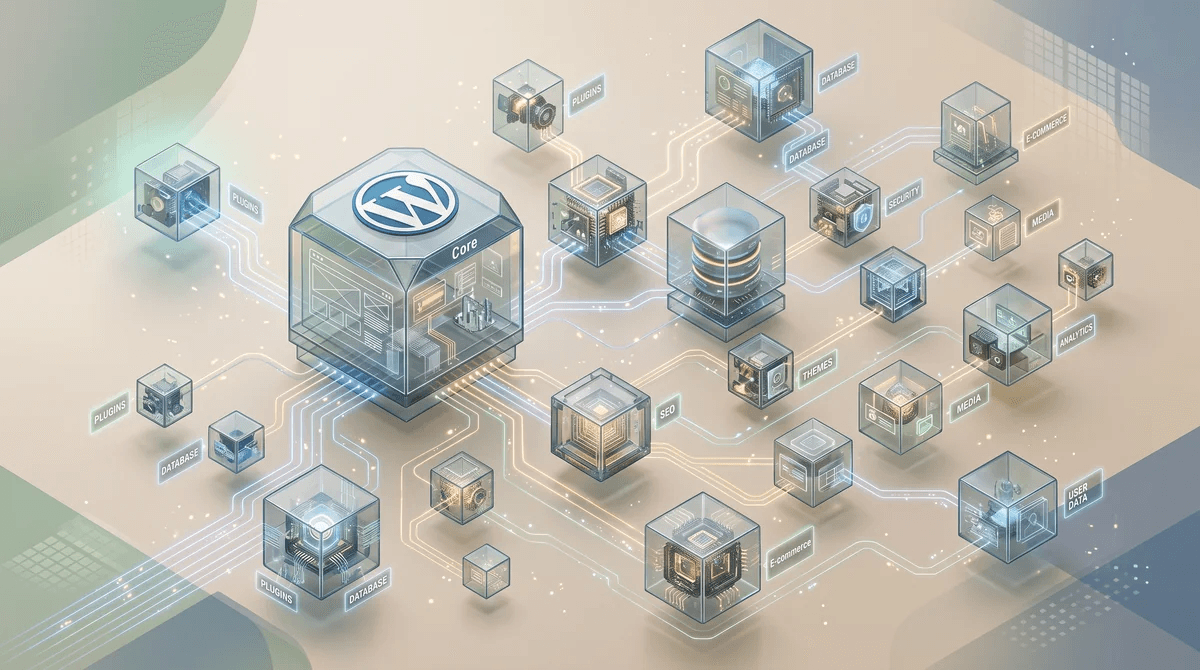
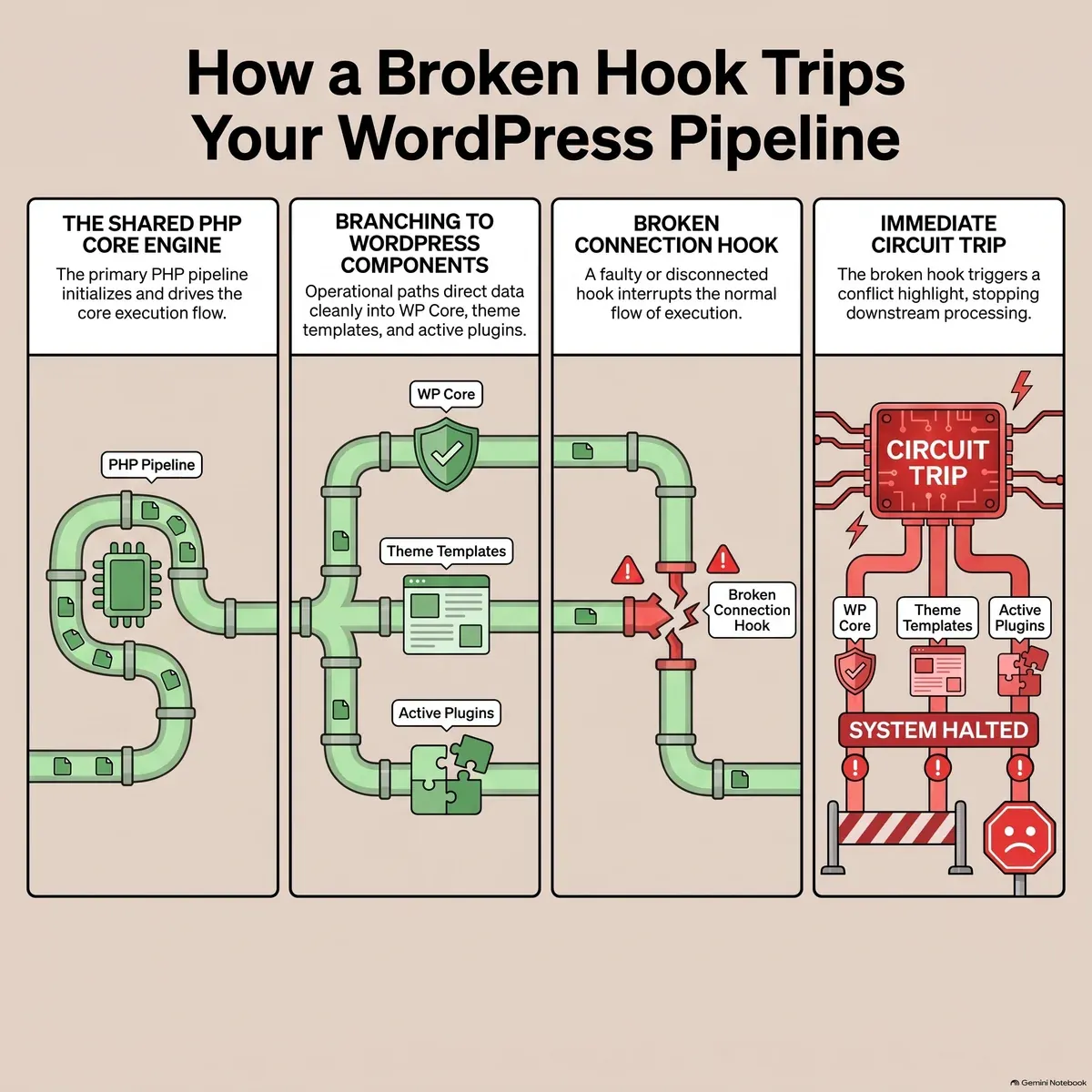
This happens to small-business websites every week — not because plugins are poorly made, but because a WordPress site runs dozens of moving parts at once. When one part changes, it can accidentally bump into another. The update itself isn’t the villain. The interaction between the update and your specific setup is.
This guide is for the moment after something has already gone wrong. It walks you through spotting the problem, finding the cause, and getting your site back — without needing to understand code.
If your site is down right now and you have a recent backup, skip to Step 3: Restore from Backup below. That’s the fastest path back to normal.
First: What Does “Broken” Actually Look Like?
Not every problem is a white screen. Some breakage is subtle — and that’s what makes it easy to miss for hours or days. After any update cycle, spend two minutes checking these:
| What to check | What broken looks like |
|---|---|
| Contact / lead form | Form field disappears, submit button does nothing, or confirmation message never shows |
| Homepage header and navigation | Menu links missing, logo out of place, layout stacked weirdly |
| Product or service pages | Images won’t load, prices not showing, “Add to Cart” button missing |
| Checkout (if you sell online) | Blank page, error message, payment field not loading |
| Site on a phone | Text too small, buttons off-screen, form extends past the edge |
| Speed | Page feels noticeably slower than before — takes more than 3–4 seconds to load |
If you see any of these, don’t keep clicking around. Note what’s broken and move to the next step.
Step 1: Find the Culprit Plugin
The most common cause of post-update problems is a single plugin conflicting with your theme or another plugin. The good news: you can usually identify it in under 10 minutes using a simple on/off method — no technical knowledge required.
How it works: WordPress loads all active plugins every time a page opens. If you turn off one plugin and the problem disappears, that plugin is the cause.
The process:
- Log in to your WordPress admin dashboard (
yoursite.com/wp-admin). - Go to Plugins → Installed Plugins.
- Find the plugin you just updated. Click Deactivate next to it.
- Open your site in a new browser tab. Is the problem gone?
- Yes → You found the cause. Jump to Step 2.
- No → Reactivate that plugin, then deactivate the next recently updated one. Repeat.
If you updated several plugins at once and aren’t sure which one to start with, deactivate them one at a time starting with the most recently installed or updated.
What if you can’t log in at all?
If the update caused a complete crash — meaning the WordPress admin itself won’t load — you have two options:
-
WordPress Recovery Mode: Since 2019, WordPress automatically detects certain types of crashes and emails the site admin a special recovery link. Check the email address you use for your WordPress admin account. The email comes from your site and says something like “Your site is experiencing a technical issue.” Follow the link inside — it lets you into a safe version of the admin where you can deactivate the problem plugin.
-
Your hosting control panel: Log in to your web host (the company where your website is hosted — GoDaddy, Bluehost, SiteGround, WP Engine, etc.) and find their File Manager. Navigate to
wp-content/plugins/, find the folder named after the plugin you updated, and rename it — for example, changecontact-form-7tocontact-form-7-OFF. WordPress will treat it as gone and deactivate it automatically. Reload your site. If it comes back, you found the culprit. Rename the folder back to its original name after you’ve decided what to do next.
Step 2: Once You Know Which Plugin Broke It
You have three choices:
Option A — Wait for an update. Plugin authors often release a patch within 24–72 hours when a conflict is reported. Keep the plugin deactivated in the meantime. Check their WordPress.org support page or changelog for new releases.
Option B — Roll back to the previous version. A free plugin called WP Rollback lets you install an older version of any plugin directly from the WordPress admin — no technical steps. Install it, find the plugin, and choose the version from before the update.
Option C — Call for help. If the plugin is business-critical (your booking system, payment processor, or e-commerce checkout) and you can’t get it working within 30 minutes, call in a professional. Have the plugin name and version number ready, along with a screenshot of what’s broken.
Step 3: Restore from Backup
If the problem is widespread — multiple things broken, admin not loading, site completely down — and you have a recent backup, restoring it is faster than hunting for the conflict.
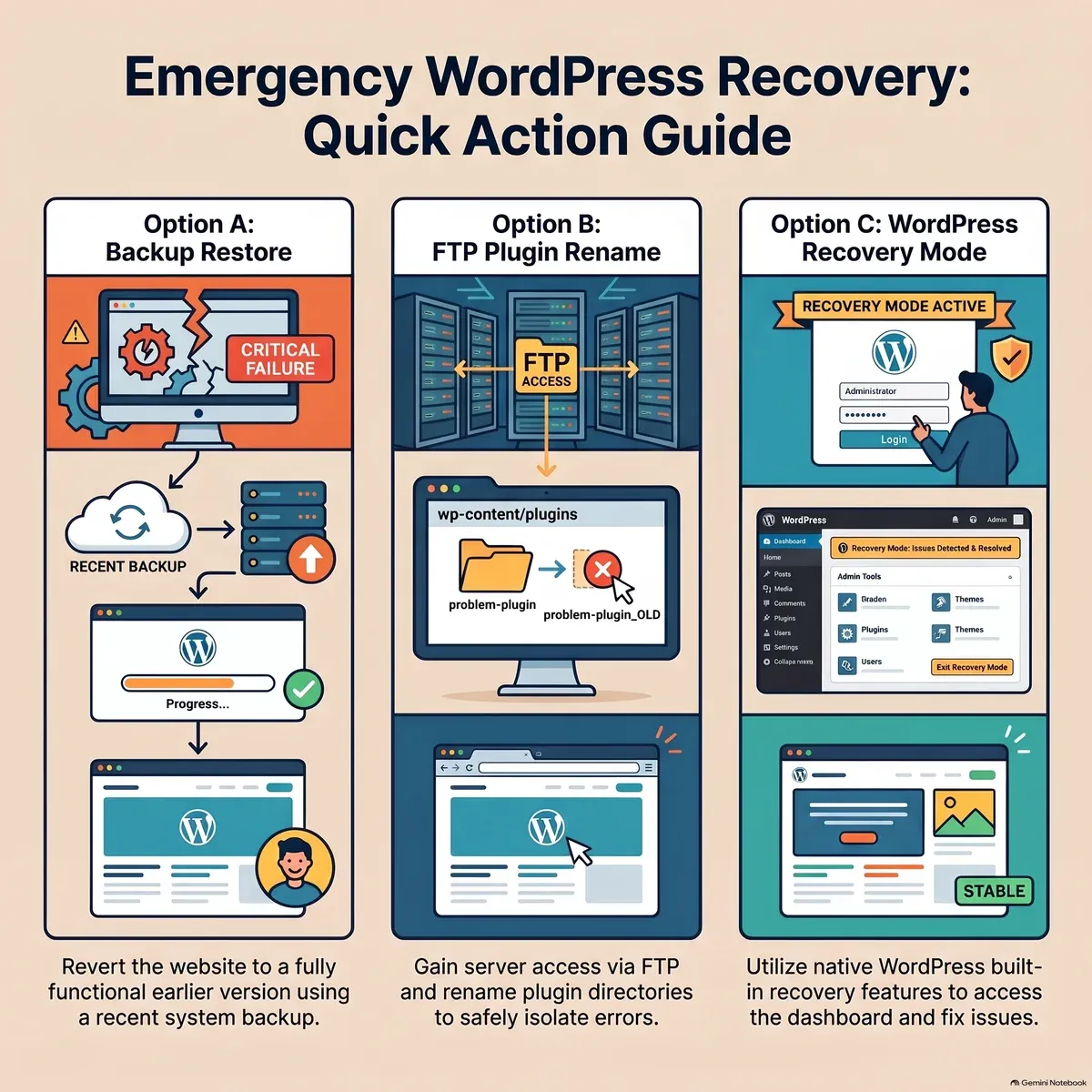
How to restore:
- Log in to your web hosting account.
- Find the backup section (usually labeled “Backups,” “Backup Manager,” or look for it in the cPanel dashboard).
- Select the most recent backup taken before the updates you ran. Look for today’s or yesterday’s date.
- Choose “Restore” and confirm. The process typically takes 2–10 minutes.
- Once the restore completes, load your site and verify the problem is gone.
If your host doesn’t have a one-click restore, or your backup is more than a week old, you may need help from a developer or your hosting support team. Most hosts have 24/7 chat support that can walk you through the process.
Important: After restoring, the plugins that caused the issue will be back at their old version. Don’t update them again until you understand what went wrong.
4 Habits That Prevent This Situation
The steps above fix the problem after it happens. These habits mean it rarely happens in the first place.
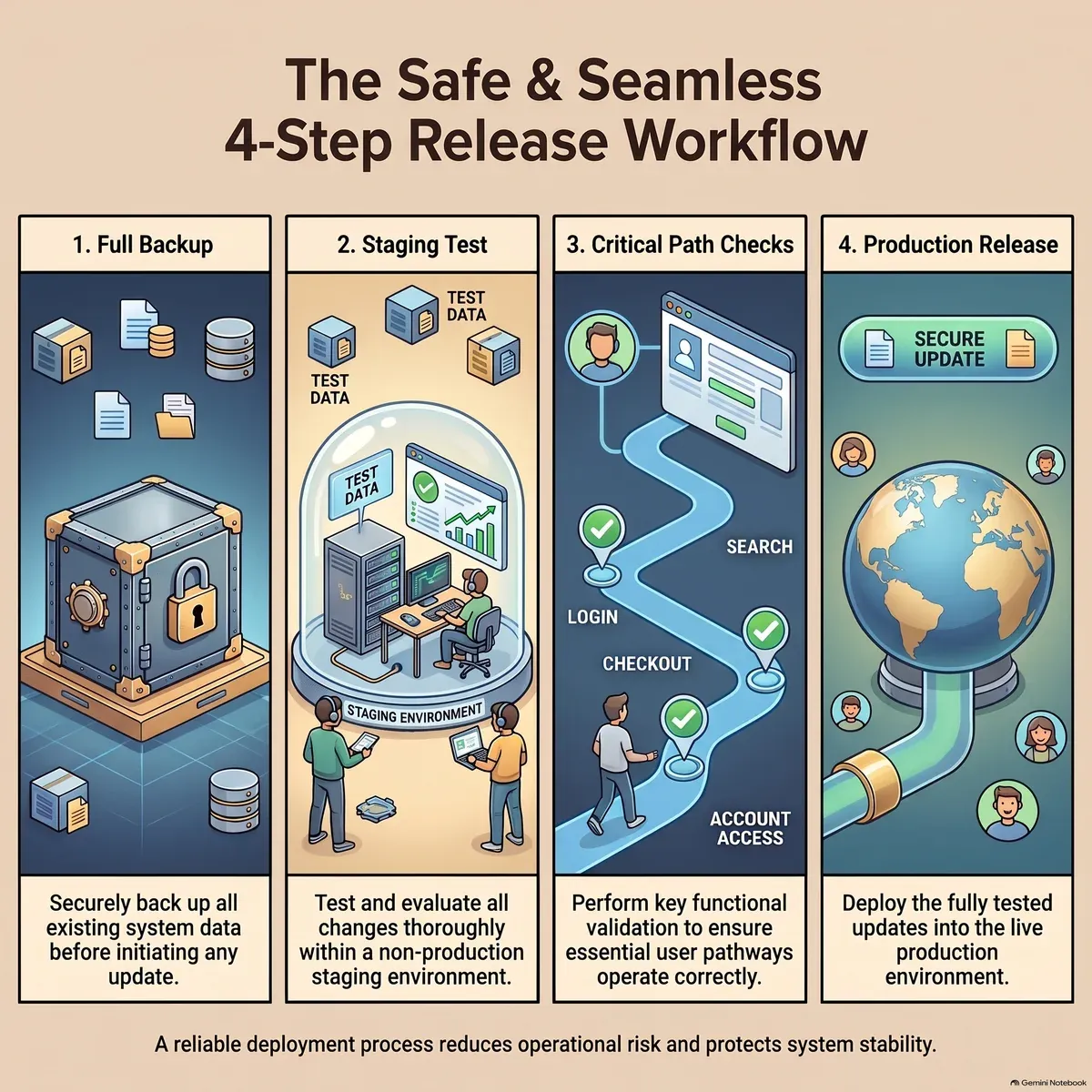
1. Never update plugins directly on your live site without a backup first. Before touching anything in the Updates dashboard, confirm a backup exists from the last 24 hours. Most quality hosts (WP Engine, Kinsta, Flywheel, SiteGround) run automatic daily backups. If yours doesn’t, a plugin like UpdraftPlus can handle it on a schedule.
2. Update one plugin at a time — not all at once. Bulk-updating 12 plugins simultaneously means if something breaks, you have 12 suspects and no easy way to find the one that caused it. One at a time takes longer but saves hours of diagnostic work later.
3. Check the changelog before updating major versions. When a plugin goes from version 2.x to 3.x — a major version change — the author often restructured how the plugin works. Before clicking Update on a major version, open the plugin’s listing on WordPress.org and read the “What’s new” notes. If it says “breaking changes” or “database restructure,” treat it with extra care.
4. Test your contact form after every update. It takes 45 seconds: submit a test message through your own contact form and verify you receive it. This single check catches the most common business-impact failure after any update.
When to Stop and Call a Professional
You should stop troubleshooting yourself and call for help when:
- The site has been down for more than 30 minutes during business hours.
- The broken element is your checkout, payment form, or booking system — any feature customers use to pay you.
- You’ve deactivated all recently updated plugins and the problem is still there.
- You don’t have a usable backup and the site is completely broken.
- You’re uncomfortable with any of the steps above.
When you call or message a developer, tell them: what you updated, when you updated it, what’s broken now, and what you’ve already tried. That context cuts their diagnostic time in half and gets your site back faster.
The Cleaner Long-Term Answer
If you find yourself doing this troubleshooting more than once a quarter, the root problem is usually one of two things: updates running without a safety net, or too many plugins with no one watching for conflicts.
Avesom’s WordPress Care Plans handle the update cycle on a set schedule — plugins tested in a staging copy of your site before they touch the live version, with your critical pages verified after every update cycle. If something does break, it’s caught before visitors see it.
Explore WordPress Care Plans →
The goal isn’t to make you a plugin expert. It’s to make sure you never have to troubleshoot this on a Tuesday morning again.